
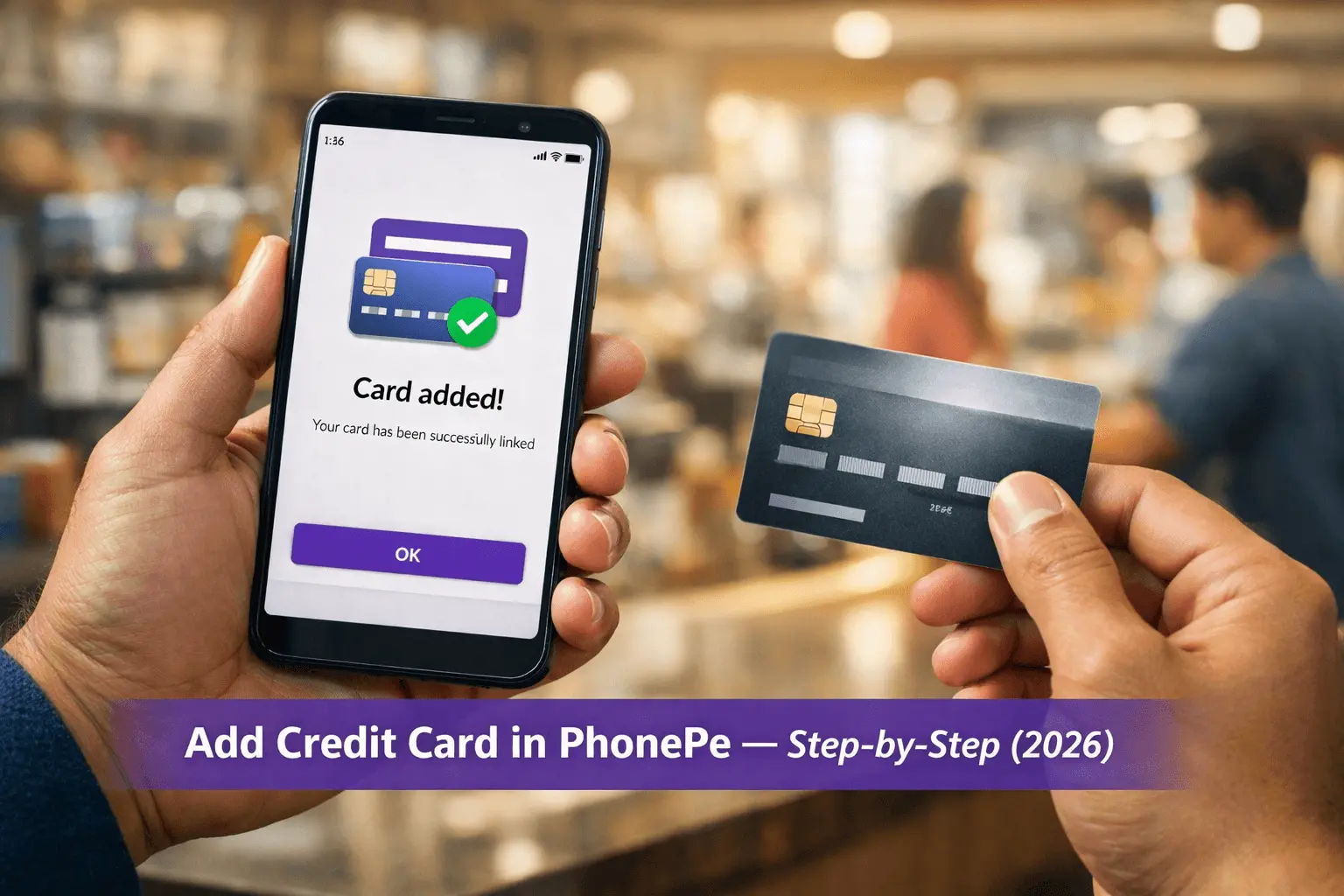
You’re standing at a checkout counter or trying to pay an urgent electricity bill. You open your wallet, and oops your debit card is missing, or worse, your bank account balance is looking a little sad. We’ve all been there. It’s that moment of mild panic where you wish you could just use your credit card.
Well, the good news? You can absolutely Add Credit Card in PhonePe. And you don’t even need to carry the physical plastic around.
PhonePe has quietly become the Swiss Army knife of payments for millions of us in India. But while most people use it for direct bank transfers, a lot of users are still “sleeping” on one of its best features: paying via Credit Card.
Whether you want to scan a QR code at a tea stall using your RuPay card or just want to pay your rent using a Visa/Mastercard to rack up those reward points, adding your card to PhonePe is the game-changer you need.
In this guide, I’m going to walk you through exactly how to do it safely, quickly, and without the tech-headache.
Why You Should Stop Ignoring This Feature
Before we get to the buttons and clicks, let’s talk about why you’d want to do this. It’s not just about having a backup.
- Cash Flow Management: Using a credit card for utilities (like rent or electricity) keeps your bank balance healthy until salary day.
- Reward Points: Every time you swipe (or click), you earn points. Why pay via bank transfer and get nothing when you can get cashback or air miles?
- Emergency Fund: Sometimes, the bank server is down. Having a credit card linked is your fail-safe backup plan so you’re never stuck.
Understand the Two Types of Linking
This is where 90% of people get confused, so read this carefully. PhonePe handles credit cards in two very different ways depending on what card you have:
- For UPI (Scan & Pay): This is for RuPay Credit Cards only. You can link these exactly like a bank account and scan any merchant QR code to pay.
- For Bill Payments (Saved Cards): This is for Visa, Mastercard, Amex, and Diners. You cannot use these for UPI (scanning QR codes at shops). You can only use them to pay bills inside the PhonePe app (recharge, rent, insurance, etc.).
Clear? Great. Let’s set them up.
Method 1: How to Add Credit Card in PhonePe for UPI (Scan & Pay)
If you have a RuPay credit card, you have a superpower. You can use it just like your bank account to scan QR codes at shops.
Follow these steps:
- Open PhonePe: Tap the app and unlock it.
- Go to Profile: Tap your Profile Picture in the top-left corner.
- Find the Banner: Look for a section that says “Link RuPay Credit Cards on UPI”. It’s usually prominent. If you don’t see it, look under the “Payment Methods” section.
- Select Your Bank: Just like you did for your savings account, search for the bank that issued your credit card (e.g., HDFC, SBI, Axis).
- Fetch Details: PhonePe will automatically find your card linked to your mobile number.
- Set UPI PIN: You will need to set a UPI PIN (this is different from your ATM PIN). You’ll likely need the last 6 digits of your card and the expiry date to verify this.
Done! Now, when you scan a merchant’s QR code, you can select your Credit Card as the payment source instead of your bank account.
Method 2: Add Credit Card in PhonePe for Bill Payments
If you have a Visa, Mastercard, or Amex, you can’t use it for UPI, but you can save it for faster checkouts when paying mobile bills, electricity, or buying gift cards.
Here is the quick setup:
- Head to Profile: Tap your profile icon (top-left).
- View All Payment Methods: Scroll down to the section “Payment Methods” and tap on “Debit & Credit Cards”.
- Add New Card: Tap on the “Add New Card” button.
- Enter Details: Type in your Card Number, Valid Thru date (Expiry), and CVV.
- Verify via OTP: PhonePe will charge a token amount (usually ₹2 or ₹5) to verify the card is active. Don’t worry, this amount is automatically refunded to you instantly.
- Save: Once the OTP is entered, your card is saved.
Pro Tip: Next time you pay an electricity bill, just select this card from the options. You will only need to enter your CVV and the OTP to complete the payment.
Common Mistakes (Don’t Do This!)
I’ve seen plenty of friends get frustrated because of simple errors. Let’s avoid those.
- Confusing the PINs: Your UPI PIN (for RuPay) and your Credit Card PIN (for ATM withdrawals) are different. Don’t mix them up during setup.
- Trying to Scan with Visa: As mentioned, you cannot scan a vegetable vendor’s QR code and pay with a Visa/Mastercard yet. It will simply fail or ask for a bank account.
- Ignoring Limits: Just because it’s a credit card doesn’t mean it’s unlimited. UPI on Credit Cards often has lower transaction limits than standard bank UPI.
- Wrong Mobile Number: If your PhonePe number is different from the number registered with your credit card bank, the app won’t be able to fetch your details. They must match.
Is It Safe to Save My Credit Card on PhonePe?
This is a valid fear. We hear about scams every day.
However, PhonePe is regulated by the RBI and uses Tokenisation.
What is Tokenisation?
When you save your card, PhonePe doesn’t actually store your real card number on their servers. They replace it with a unique code (a token). Even if hackers managed to break in (which is incredibly hard), they would find useless tokens, not your actual card details.
Plus, no transaction can happen without you entering the OTP or UPI PIN. So yes, it is highly secure.
5 Practical Tips That Actually Work
- Nicknames Help: If you have multiple cards (e.g., one for shopping, one for fuel), give them nicknames in the app so you don’t accidentally use the wrong one.
- Check for Rent Fees: PhonePe allows you to pay rent via credit card, but they charge a convenience fee (usually 1-2%). Calculate if your reward points outweigh this fee before paying.
- Enable International Usage: Sometimes, adding a card fails because “International/Online Transactions” are disabled in your banking app. Enable them and try again.
- Don’t Over-Link: Only link cards you actually plan to use. Cluttering your payment options just makes checkout slower.
- Watch the Refund: If the ₹2 verification charge doesn’t come back within 24 hours (rare, but happens), contact support. It’s small money, but it’s the principle!
Final Thoughts: One Small Step for Your Wallet
Adding your credit card to PhonePe isn’t just about “tech-savviness” it’s about financial flexibility. It saves you when your bank server is down, earns you rewards on boring bill payments, and keeps your wallet slim.
My suggestion? If you have a RuPay card, link it now. The freedom of scanning a QR code and paying on credit is a feeling you won’t want to give up once you try it.
Go ahead, open the app, and give it a shot. It takes less than 2 minutes!
(Disclaimer: Financial features change frequently. Always check the official PhonePe support page for the latest regulatory updates.)
Frequently Asked Questions
Can I transfer money to a friend using my Credit Card on PhonePe?
Generally, No. Peer-to-Peer (P2P) transfers are not allowed via Credit Cards (even RuPay). You can only pay merchants (P2M). If you try to send money to your friend’s personal number, the credit card option won’t show up.
Is there a fee for adding a credit card?
No, adding the card is free. However, PhonePe charges a small refundable amount (₹2) to verify the card.
Why is my RuPay card not showing up for linking?
Not all banks are live on UPI yet. While major banks like HDFC, SBI, Axis, and Canara are active, some smaller banks might still be in the integration phase. Also, ensure your mobile number matches.
Can I remove my card later?
Absolutely. Go to Profile > Debit & Credit Cards, tap the three dots next to your card, and select Remove.

Sachin is a professional blogger who believes in “Human-First” content. He specializes in breaking down complicated tech and finance topics into simple, actionable steps. His goal is to empower users with the right knowledge to make smarter digital decisions.